Student Services Center
DGPs and GSCs can use the Student Services Center in MyPack to access a wide variety of student information.
Navigate to the Student Services Center
MyPack Portal > Student Information System homepage > Student Records tile or Advising tile > Student Services Center
The Student Services Center is the first page you see when you open the Student Records tile or Advising tile. When you look up a student by student ID, Unity ID, or name, select their ‘Graduate’ record from the search results. You will then see several tabs at the top of the page, which are summarized below. You will notice that some information may be found in multiple places throughout the Student Services Center and MyPack in general (i.e. links to the Graduate Degree Audit, the Unofficial Transcript, etc.).
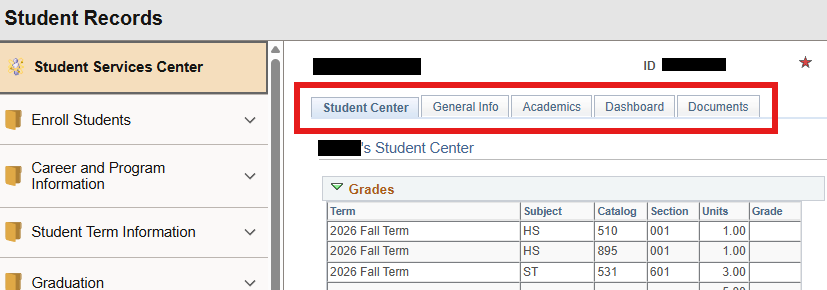
Student Center tab
The ‘Student Center’ tab contains an overview of basic information for the student:
- Grades section: View the student’s current semester registration and grades (when posted).
- Academics section: Use the ‘Other Academic Information’ drop down menu to view helpful pages like Enrollment History, Graduate Degree Audit, Transfer Credit Report, and Unofficial Transcript.
- Personal Information section: Contact Information and a link to the Emergency Contact
- Parent Access section: If the student has given permission to a family member to access their FERPA-protected information, the PIN you have to ask them to provide is listed here.
- Holds: Holds listed here typically prevent registration; you may click the “Details” link in this section (then click the name of the hold) to see the same instructions the student would see regarding the hold.
- To Do List: These items do not prevent registration, but can block other milestones such as scheduling an oral exam or being cleared for graduation.
- Enrollment Dates: If the student cannot register until a certain date, it will be listed here.
- Advisor: Assigned advisors and faculty who have been approved to serve on the student’s committee (when applicable) will appear here.
- You will also see buttons that link to the student’s enrollment, Planner, and Degree Audit.
General Info tab
The ‘General Info’ tab provides:
- An alternate way to see “service indicators,” such as holds
- Personal data, including the student’s date of birth (Note: Gender is listed here, but you may always hover your cursor over the student’s name in the top left corner to see their preferred name, pronouns, photo, etc.)
- Addresses, phone numbers, and email addresses; even if a non-NC State email address is listed here, official correspondence should always be sent to the NC State account
Academics tab
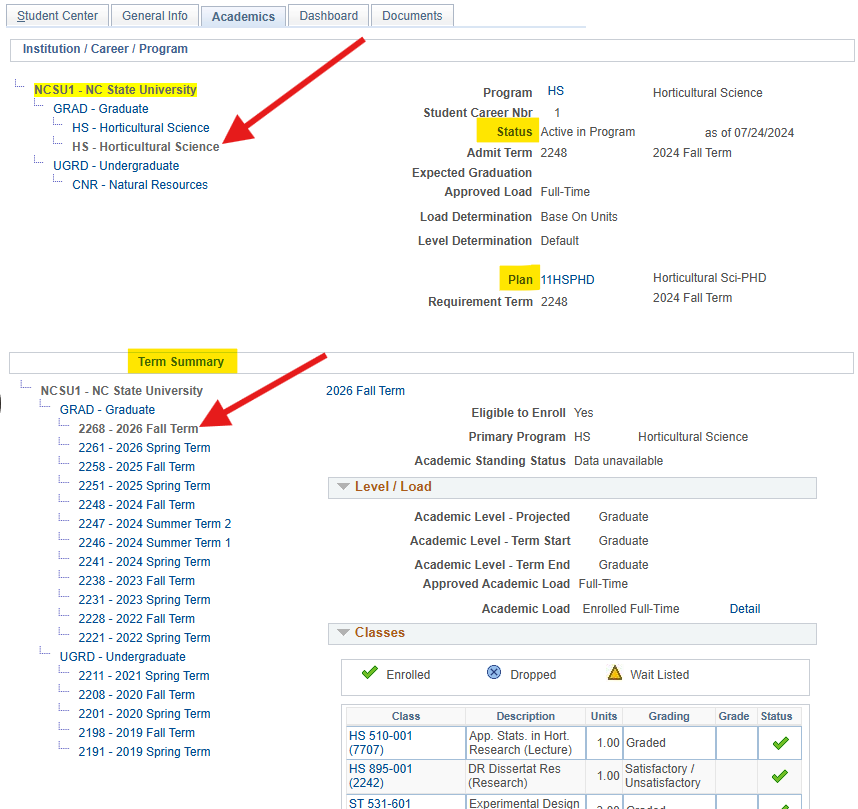
The ‘Academics’ tab is very helpful for viewing all programs/plans a student has had on their record here at NC State. Under ‘Institution / Career / Program,’ be sure to click the plan you want to view. The record in the screenshot below demonstrates how a student may have both undergraduate and graduate records, with multiple plans under the graduate record. This student, for example, completed the Horticultural Science MS, then continued on to the Horticultural Science PhD; that is why the ‘HS’ program is listed twice under “GRAD.” The top arrow is pointing to the program that has been clicked; on the right side, you can see this is the PhD plan. Under ‘Term Summary,’ you may click on the various terms (bottom arrow) to see academic information for that term on the right side, including academic standing, academic load, classes, and GPA data.
Dashboard tab
The ‘Dashboard’ tab is a great resource for accessing much of the student’s academic record in one place. Under the student’s photo, be sure to confirm the program/plan you want to see from the drop down menu (in case the student has more than one). Then, you may view the information in the various sections:
- Personal Information: Contains the student’s photo and links to the degree audit, unofficial transcript, and enrollment history
- Major Summary: Contains the program and plan, Plan and Cumulative GPAs, and courses listed on their degree audit
- Advising Information: Contains any in-progress or completed milestones (i.e. oral exam results and thesis/dissertation status), advisory committee members (when applicable), and academic load and standing
- Advising Comments: Typically used by undergraduate advisors
Documents tab
The ‘Documents’ tab is essentially the student’s “electronic file.” It includes documents from throughout the student’s academic career, including forms that were submitted to the Graduate School and processed by Graduate School staff.